 RoomDisk
Move Android photos to a computer without a cable
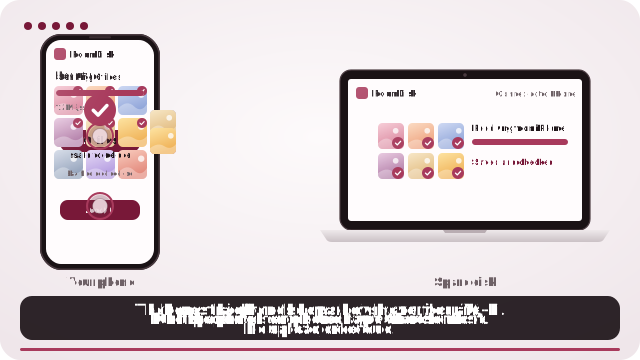
Open RoomDisk on the computer as the spare disk, scan its code with the Android phone, and send. Files land in a normal folder on the computer.
How to do it
- On the computer, open roomdisk.com/app in Chrome or Edge, choose Use this device as the spare disk and pick a folder.
- Scan the QR code with the Android camera (or Google Lens) and tap Connect.
- Show the reply to the computer’s webcam, or tap Share reply.
- Choose photos and send.
Share straight from Gallery
After you add a RoomDisk shortcut on Android, RoomDisk appears in the Share menu: share photos from Gallery or Google Photos to RoomDisk, then pair to send them.
Compared with the usual ways
- USB cable: works, but needs the right cable, the phone set to “File transfer”, and a computer that recognises it.
- Google Photos: uploads everything to the cloud first, uses your storage quota and may need a download afterwards.
- Quick Share / Nearby Share: needs both devices to support it and to find each other.
- RoomDisk: works in the browser on any computer, sends originals, and checks every file with SHA-256.
Where the files go
In Chrome or Edge on the computer, files land in the folder you picked, in a sub-folder per phone, ready to open. In other browsers they’re kept inside the browser and you download them from Files.
Questions
Do I need an app on the Android phone?
No. Open RoomDisk in Chrome on the phone; a Home Screen shortcut is optional.
Does it work with a Mac?
Yes. On a Mac, Chrome or Edge can save into a folder; Safari keeps files in the browser for you to download.
Are photos compressed?
No. The original files are copied and checked on both devices.
Try it with the two devices you have
Free to start. Nothing to install, no account.