 RoomDisk
Transfer photos from iPhone to a PC without a cable
No USB cable, no iTunes and nothing to install: open RoomDisk in Chrome or Edge on the PC and in Safari on the iPhone, pair with a QR code, and send. Each photo is checked when it lands.
How to do it
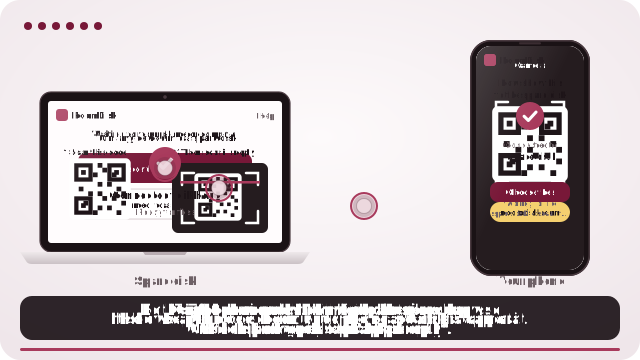
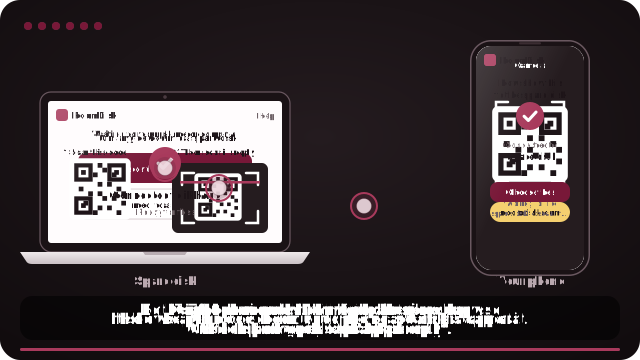
- On the PC, open roomdisk.com/app in Chrome or Edge and choose Use this device as the spare disk. Pick a folder: photos land there as normal files.
- Scan the QR code with the iPhone’s Camera app and tap Connect.
- Show the iPhone’s reply to the PC’s webcam, or paste it.
- Choose photos on the iPhone and send.
Why it’s easier than a cable
A cable needs the right adapter, an unlocked phone, “Trust this computer”, and often iTunes or the Photos app on Windows. RoomDisk needs two browsers on the same Wi-Fi (or the iPhone’s hotspot).
On iPhone, for exact originals, tap Options in the photo picker and choose Current, or pick from the Files app. Otherwise iPhone may send converted copies (for example JPEG instead of HEIC).
Where the files go
In Chrome or Edge on a computer, the spare disk can be a normal folder you choose, so photos are ordinary files in a folder per device. Every batch gets a receipt with SHA-256 fingerprints.
Questions
Do I need the same Wi-Fi?
Is there a size limit?
Try it with the two devices you have
Free to start. Nothing to install, no account.