 RoomDisk
Devices won’t connect, or a transfer is stuck? Fix it here
Almost every connection problem is the network: the two devices can’t reach each other directly. Almost every stalled transfer is a screen locking or a page going to the background. Both are quick to fix, and nothing already sent is lost.
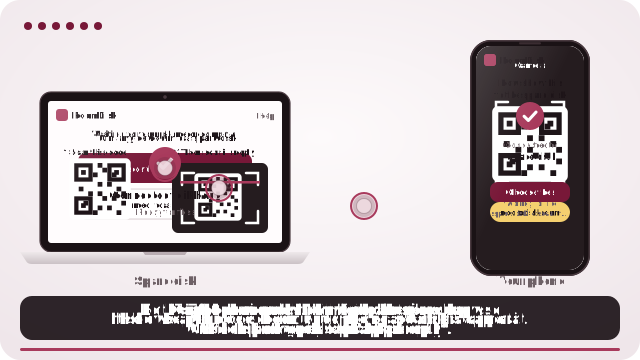
If the devices won’t pair
- Put both devices on the same Wi-Fi (not one on Wi-Fi and one on mobile data), or join one to the other’s hotspot.
- Use the current code: codes last two minutes and work once.
- Scan the right way round: the phone scans the disk’s code first, then shows its reply code to the disk.
- Turn off any VPN on either device while pairing.
- If the error says a device hid its address, tap Allow camera and try again: browsers share the real network address once the camera is allowed. Nothing is recorded.
If the devices don’t “show up” on the same Wi-Fi
Nearby-share apps find each other by sending discovery messages across the network, and firewalls, VPNs, different Wi-Fi bands or the router itself can hide them. RoomDisk doesn’t search for devices: the QR code carries what they need, so there is no discovery step to fail.
If the network keeps devices apart
Guest, hotel, school and office Wi-Fi often use “client isolation” (also called AP isolation): devices on the same network can’t reach each other at all. RoomDisk’s error screen says when that’s likely.
- Turn on one phone’s hotspot and join it with the other device. The transfer uses no mobile data.
- At home, make sure neither device is on the router’s guest network.
- Devices on different networks altogether (home and work)? That’s what RoomDisk Anywhere is for.
If a transfer stops halfway
- Bring RoomDisk back on screen on both devices: phones pause pages in the background.
- Keep both screens on: plug in, and use Disk mode on the disk.
- Move closer to the router, or use one device’s hotspot.
- If the link closed, connect again and tap Continue sending. Finished files are skipped and a part-sent file continues from its last checked piece.
- For very large batches, send in smaller groups.
Still stuck?
On the error screen, tap Copy debug report and email it to [email protected]. It contains no addresses or file names.
LocalSend and Quick Share are trademarks of their owners. RoomDisk isn’t affiliated with them.
Questions
Do both devices need internet?
Will I lose what was already sent?
Why does it ask for the camera when it fails?
Why can’t my devices see each other on hotel Wi-Fi?
Try it with the two devices you have
Free to start. Nothing to install, no account.