 RoomDisk
Transfer files without internet
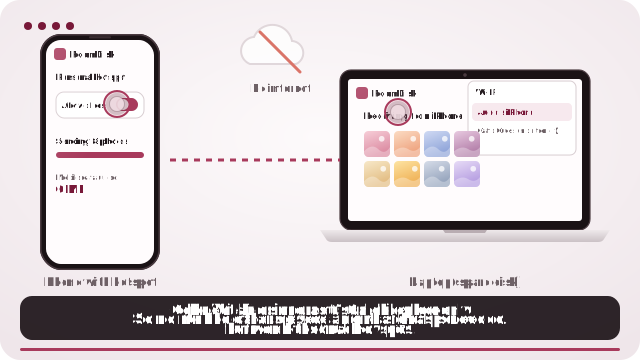
RoomDisk doesn’t need the internet to move files, only for the very first visit. Turn on one phone’s hotspot, join it with the other device, and pair as usual.
How to do it
- While you’re online, open roomdisk.com/app once on both devices (or add a shortcut) so it works offline.
- Turn on Personal Hotspot on one device. On the other, join that hotspot.
- Open RoomDisk on both and pair with the QR code.
- Send. Nothing uses mobile data; the hotspot only links the two devices.
Good to know
- The hotspot doesn’t need a data plan or signal.
- Without a hotspot, a shared Wi-Fi router with no internet works too.
- Pro and Anywhere sign-in also work offline: passcodes are checked on the device.
Where this helps
- Travel: back up the day’s photos to a laptop or second phone in a hotel with paid or slow Wi-Fi.
- Shoots and events: offload clips to a laptop on location, then free space for the next scene.
- Planes, hikes, cabins: no signal needed at all, as long as both devices opened RoomDisk once before.
Why it works without internet
RoomDisk is a web app that saves itself on the device after the first visit. Pairing happens by QR code, and files go directly between the two devices over the local link, so nothing has to reach a server.
Questions
Does a hotspot use mobile data for this?
No. The hotspot only links the two devices; files don’t go over the internet.
Do I need to open RoomDisk online first?
Yes, once on each device, so it is saved for offline use. Adding a Home Screen shortcut helps on iPhone.
Is it slower than on home Wi-Fi?
Usually not much: a phone hotspot is a direct link between two devices close together.
Try it with the two devices you have
Free to start. Nothing to install, no account.