
How to get more storage on your Android phone
Some Android phones still have a memory card slot; many newer ones, including most flagships, don’t. Either way there are four ways to get room back: clear what you don’t need, add a card or a USB-C drive, pay for Google One, or move photos and videos to a device you already own.
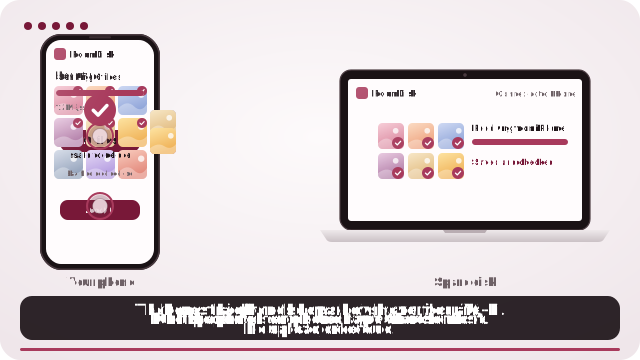
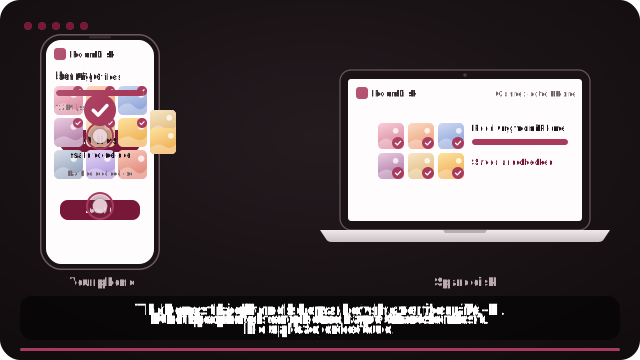
Move photos to a device you own
- On the device that will keep your photos (a laptop, tablet or old phone), open roomdisk.com/app and choose Use this device as the spare disk.
- On the Android phone, scan its code with the camera (or Google Lens) and tap the link.
- Pair, choose your biggest videos and albums, and send.
- Delete only what RoomDisk lists as safe to delete.
Quick wins first (free, five minutes)
- Use the clean-up tool: the Files by Google app (or your phone’s own storage settings) suggests junk files, duplicates and old downloads to remove.
- Empty the bin in your gallery app or Google Photos: deleted items can keep using space for 30 to 60 days.
- If Google Photos backs up your photos: its “Free up space” removes the copies on the phone that are already safely backed up.
- Clear big chat media: WhatsApp and other chat apps keep every video you were sent. Each app has a storage section that lists the largest.
Your options
- A memory card (if your phone has a slot): the cheapest extra space. Move photos and videos to it in the camera or gallery settings. Cards can fail, so it’s storage, not a backup.
- A USB-C flash drive: plug it in and use the Files app to move photos onto it. Handy, but easy to lose, and nothing checks the copies.
- Google One: the free 15 GB is shared with Gmail and Drive; more space is a monthly plan. Alternatives to Google Photos.
- A device you already own: an old phone, a tablet or a laptop becomes your phone’s extra storage with RoomDisk. Nothing to install, no account, $14.99 once.
Why a device you own works well with Android
- Share straight from the gallery: after you add a RoomDisk shortcut, it appears in the Share menu.
- Any computer: Windows, Mac or Linux. On Chrome or Edge, photos land in a normal folder.
- Old Android phones work too, from Android 7 with Chrome: the phone in your drawer can be the disk.
- Every file checked on both devices, so “safe to delete” really means it.
Questions
Does my phone have a memory card slot?
Check the SIM tray: if it has a second space for a microSD card, yes. Your phone’s spec sheet says too. Many recent flagship phones have no slot.
Can I move apps to a memory card?
Some phones allow it for some apps, but photos and videos are what free the most space, and those move easily.
Does RoomDisk need an app on Android?
No. It runs in Chrome; adding a Home Screen shortcut is optional and puts it in the Share menu.
Will moving photos delete them from Google Photos?
No. RoomDisk copies; it never deletes. If you then delete a backed-up photo in the Google Photos app, it’s removed from your Google account too, so use “Free up space” to clear only the phone’s copies.
Try it with the two devices you have
Pay once, keep it. Nothing to install, no account.