
Getting a new phone? Sort out your photos first
Setting up a new phone copies everything from the old one, including the years of photos and videos that filled it. So the new phone starts half full, and the bigger plan or bigger phone you paid for fills up again. Ten minutes before you switch fixes that: move the archive to a device you keep, check every copy, and carry over only what you want.
Before you switch
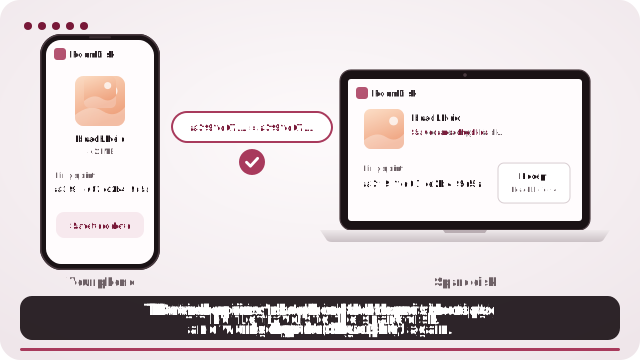
- Choose the device that will keep your archive: a laptop, a tablet or another spare device. (Want the old phone itself to be the disk? See below.)
- Open roomdisk.com/app on it, choose Use this device as the spare disk, and pair your old phone with the QR code.
- Send your photos and videos. A big library can go in batches; each batch is checked and resumes if it’s cut off.
- On the old phone, use Backed up? to confirm everything is on the disk.
- Set up the new phone as usual. If you trimmed the old phone first (see below), the new one starts with room to spare.
Make the new phone start light
Phone setup tools (Quick Start on iPhone, the copy-your-data step on Android, or a switching app between the two) copy whatever is on the old phone. Once your archive is safely on the disk, remove older photos and videos from the old phone before you transfer, and keep the last few months.
Check your cloud first. With iCloud Photos or Google Photos backup turned on, deleting a photo on the phone deletes it from the cloud and your other devices too. Make sure the disk has everything (Backed up? says so) before you delete anything.
On iPhone, for exact originals, tap Options in the photo picker and choose Current, or pick from the Files app. Otherwise iPhone may send converted copies (for example JPEG instead of HEIC).
Then choose what happens to the old phone
Keep it as your photo disk
An old phone with 128 GB or more makes a good home for your archive. Set up the new phone with everything, then open RoomDisk on the old phone as the spare disk, send the older photos to it from the new phone, and free the space once Backed up? says they’re safe. Leave the old phone plugged in at home and browse or stream from it whenever you like. How to give an old phone a second life.
Sell, trade in or give it away
- Make sure every photo is on a device you keep, and that Backed up? on the old phone agrees.
- iPhone: Settings › General › Transfer or Reset iPhone › Erase All Content and Settings. It asks for your Apple Account password, which also turns off Find My so the next owner can use it.
- Android: remove your Google account first (in Settings under Accounts; the name varies by phone), then search Settings for “Factory reset”. Otherwise the next owner can be locked out.
- Take out the SIM and any memory card.
Switching between iPhone and Android?
Switching apps move photos between iPhone and Android during setup, but big libraries take a long time and the copy happens once. RoomDisk works in the browser on both, so you can move photos before, during or long after the switch, and check each one. iPhone to Android without a cable.
Questions
Will setting up my new phone copy all my photos?
Do I lose my photos when I trade in my phone?
Should I delete photos on the old phone if iCloud Photos is on?
Can I just keep the photos in the old phone’s Photos app?
Try it with the two devices you have
Pay once, keep it. Nothing to install, no account.