
Share family photos between homes, in full quality
The photos of the children are on your phone; the grandparents want them on their tablet; your sibling has the holiday videos. Chat apps shrink everything, shared albums often reduce quality, and family cloud plans are one more bill. Here are the ways that work, and how to keep originals.
One family disk everyone can reach
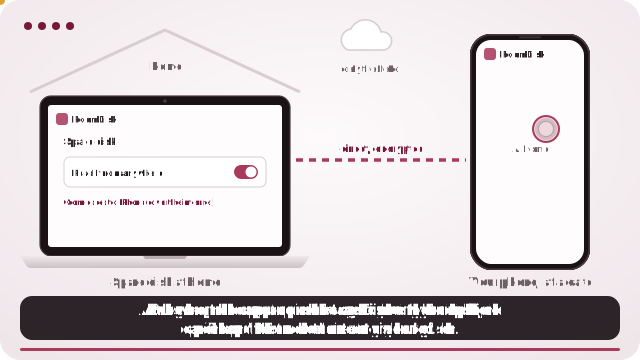
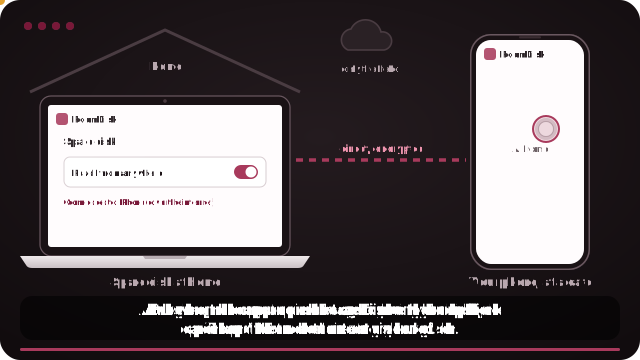
- Set up the family disk on a computer or tablet that’s always at one home: open roomdisk.com/app, choose The storage disk, name it “Family photos”, and turn on Reach from anywhere in the ☰ menu.
- When each family member visits, pair their phone once (scan, scan back, tap Allow) and sign them in with your RoomDisk passcode.
- From their own home, they open RoomDisk and tap “Family photos” under Your disks to browse, stream and save, or to send their new photos.
The options
| Chat apps | Shared albums (iCloud, Google) | Family cloud library | One family disk (RoomDisk Anywhere) | |
|---|---|---|---|---|
| Quality | Usually compressed | Often reduced | Original | Original |
| Cost | Free | Free | A monthly plan | $29 a year |
| Works across iPhone and Android | Yes | Depends on the service | Usually one ecosystem | Yes |
| Videos | Short, compressed | Limited length or quality | Yes | Yes, streamed from the disk |
| Photos live | In each chat | Provider’s servers | Provider’s servers | On the family device |
Shared albums
iCloud Shared Albums and Google Photos shared albums are free and easy. iCloud Shared Albums store a reduced-resolution copy of each photo, which is fine for looking at, not for printing or keeping as the only copy.
A family cloud library
iCloud Shared Photo Library (Apple devices only) or a shared Google One plan keep originals for everyone. They’re the most automatic option, and a monthly bill that grows with the library.
One family disk
An old laptop or tablet at one home holds everyone’s photos in their original quality, a folder per phone. With RoomDisk Anywhere, family members whose phones were paired in person can reach it from their own homes: browse the albums, stream a video, save a photo, or send their own.
How the family disk stays organised
- Each phone’s photos land in its own folder, named after the device.
- Albums brought in from Google Photos or iCloud exports become folders, with every photo’s original date.
- Photos already on the disk are skipped, so sending “everything” again is fine.
- Nothing is ever overwritten: a file with the same name gets its own name.
A copy in each home
Two homes are also a backup plan. With Anywhere, the family disk can keep a second copy on a device at the other home (Safety › Mirror disk), kept in step over the internet by itself. Choose a locked copy if you’d rather the other home couldn’t open it. Fire, flood or theft in one house then costs nothing.
What to know
- The disk has to be on. It must be online with RoomDisk open. A laptop that sleeps when the lid closes can’t be reached; set it to stay awake while plugged in.
- Your files live in one place. They’re on that device only, not copied to a cloud. Keep a second copy of anything you can’t lose.
- Speed follows your home internet’s upload. Photos and documents are quick; big 4K videos may need to load before they play smoothly.
- Some networks block direct links. Many mobile carriers and some strict office or hotel Wi-Fi don’t allow devices to connect directly. There you still see your folders and small previews; the rest waits for another Wi-Fi. Check your network.
iCloud, Google Photos and Google One are trademarks of their owners. RoomDisk isn’t affiliated with them.
Getting everyone set up
- Pick the home with a device that’s always on: an old laptop or tablet on a charger.
- At a family visit, pair each phone with it once and tap Allow. Show each person Your disks on their phone.
- Ask everyone to send their photos once a month; duplicates are skipped automatically.
- Bring in old albums from Google Photos or iCloud exports so everything is in one place.
Privacy inside the family
- Everyone paired can see what’s on the family disk, so keep it for photos meant for the family.
- Remove a device under Devices on the disk if someone shouldn’t have access any more; it’s cut off at once.
- A locked mirror copy at another home can’t be opened by the people who look after it.
If the family disk’s home has slow internet
Browsing and small previews are light. Streaming long videos from another home depends on the disk home’s upload speed; for big videos, download them once on your phone, or watch them when you visit.
Bringing everyone’s old photos together
Most families have photos spread across old phones, a Google account and someone’s iCloud. Send each phone’s library to the family disk once, and bring in Google Photos (Takeout) and iCloud (privacy.apple.com) exports with the disk’s ☰ menu › Bring in photos. Albums become folders and every photo keeps its original date, so the whole family archive ends up in one place, in order.
Questions
How can I share full-quality photos with family?
Do iCloud shared albums keep full quality?
Can family members on Android use it?
Who can reach the family disk?
What if the family disk is off?
Try it with the two devices you have
Pay once, keep it. Nothing to install, no account.