
Back up your parents’ phone photos, simply
It’s a common story: a parent’s phone says storage full, the photos of the grandchildren are only on that phone, and cloud plans, passwords and “manage storage” screens are the last thing they want. The aim is a backup they barely have to think about, that you can set up in one visit.
Set it up in one visit
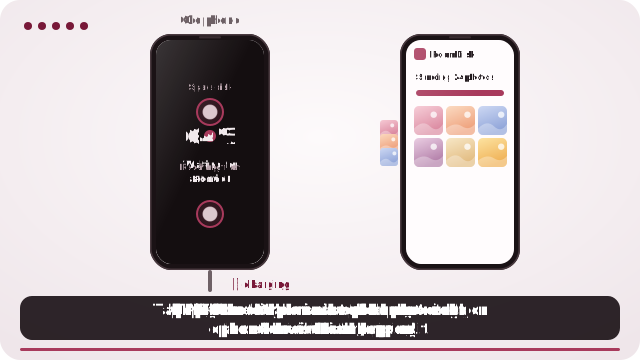
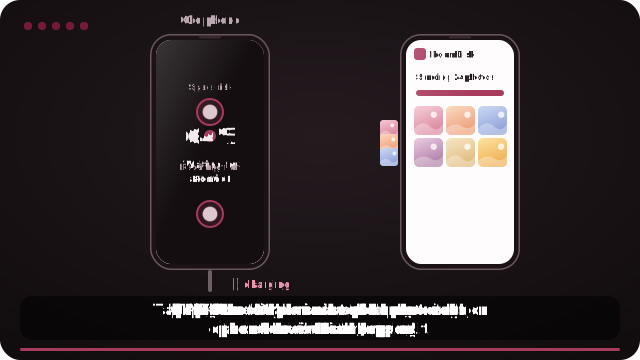
- Pick the device that stays at their home: an old tablet or laptop on a charger is ideal. Open roomdisk.com/app on it, choose The storage disk, and rename it something clear, like “Mum’s photos”.
- Turn on Disk mode on it: a calm full screen that stays on and shows what’s arriving.
- On their phone, open RoomDisk, sign in with your RoomDisk passcode, and pair with the disk (scan, scan back, tap Allow).
- Send their photos once with them watching, and show them “safe to delete”. Add RoomDisk to their phone’s Home Screen so it’s one tap next time.
What makes a backup work for an older parent
- No account or password to remember. Every extra login is a support call later.
- Nothing that changes on its own. No subscription that lapses, no plan that fills up silently.
- One clear routine: “open the RoomDisk icon, tap Photos & files, choose the new photos.”
- Proof they can see: a green tick and “safe to delete”, so they know which photos they can remove.
Your options, compared
| Share your iCloud / Google plan | A device at their home (RoomDisk) | |
|---|---|---|
| What they do | Nothing, once it’s set up | Open RoomDisk now and then and send |
| Cost | A monthly plan (shared) | $14.99 once, on a device they already have |
| If the plan fills up | Backups stop, often unnoticed | The disk shows how full it is |
| Where photos live | On the provider’s servers | On a device in their home |
| Checks each copy | Handled by the service | Yes, with a receipt |
If they already use iCloud or Google Photos happily, sharing your family plan is the easiest answer. If the plan is the problem, a device at their home is the calmer one.
The once-a-month routine
- Open RoomDisk on the tablet (it may already be open in Disk mode).
- Open RoomDisk on the phone. It reconnects by itself, with no code.
- Tap Photos & files, choose the photos since last time, and send. Photos already on the disk are skipped, so choosing everything is fine.
- When it says safe to delete, delete them in Photos if the phone is full.
Print those four lines and leave them next to the tablet. It helps more than any app.
Getting a copy to your own home too
One device is one point of failure. With RoomDisk Anywhere ($29 a year), the disk at their home can keep a second copy on a disk at yours (Safety › Mirror disk), over the internet, by itself. You can also open their disk from your phone to look at photos or help them find one, without visiting.
Make the device reliable
- Keep it plugged in, and set the screen to stay on while charging (Disk mode does this).
- iPad: Settings › Display & Brightness › Auto-Lock › Never, and add RoomDisk to the Home Screen so files are kept.
- Name it in Settings so their phone shows a name they recognise.
- Ask them not to “tidy up” the tablet’s apps: write a small note on it.
When they call you
“It says it can’t connect”
Check the tablet is on, plugged in and showing RoomDisk, and that the phone is on the home Wi-Fi (not mobile data). If it still won’t, tap the disk under Your disks on the phone.
“My phone is full again”
Send the latest photos, wait for safe to delete, then delete them in Photos and empty Recently Deleted. Photos already on the disk are skipped, so they can always choose everything.
“I deleted something by mistake”
Files deleted on the disk wait 30 days in Recently deleted on the disk, and photos deleted on the phone wait 30 days in the phone’s Recently Deleted album.
A gift that keeps working
Setting this up is a good visit present: their old tablet becomes useful again, there’s no subscription for them to manage, and RoomDisk Pro is a single $14.99. Leave the printed routine next to the tablet, and check on the disk from your own phone with Anywhere if you have it.
If they have an iPhone and you have Android (or the other way)
It doesn’t matter: RoomDisk runs in the browser on both. Pair their phone with the disk at their home, and yours with it too if you want to look at the photos. Each phone’s photos stay in their own folder.
Questions
Do my parents need their own account?
What if their phone is an Android and mine is an iPhone?
Can I help them from my own home?
Does it delete anything from their phone?
Which old devices work as the disk?
Try it with the two devices you have
Pay once, keep it. Nothing to install, no account.