
How to know your photos are really backed up
Almost every lost-photo story has the same middle: a backup said it was done, the photos were deleted, and later some were missing. Usually it was the newest videos, the originals that were still in iCloud, or the file that was copying when the screen locked. Here’s how to know for sure, from a quick check to proof.
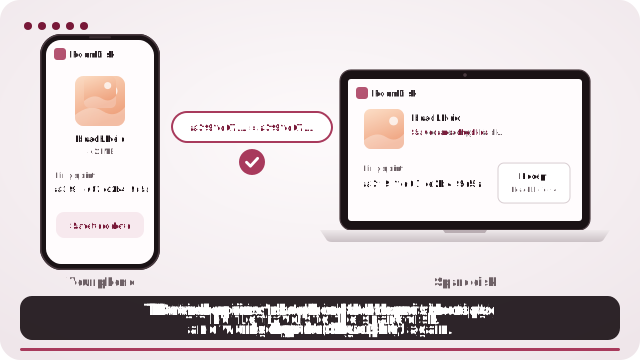
With RoomDisk, the checking is built in
- Open roomdisk.com/app on the device that will keep the files and tap The storage disk. It shows a QR code.
- On the phone or computer with the files, scan that code. A phone’s Camera app works: tap the roomdisk.com link that pops up. RoomDisk opens and shows its own code.
- On the storage disk, tap Scan reply and hold the phone’s screen up to its camera. (No camera there? Tap the share button on the phone and open the link on the disk device, or use Paste code.)
- Send your photos. The phone checks each file’s exact contents, and the disk writes it, reads it back and checks it again.
- Only files whose checks match are counted as safe to delete, and each batch gets a receipt listing every file.
Why “backup complete” can be wrong
- Sync isn’t backup. iCloud Photos and Google Photos mirror your library. Delete a photo on the phone and the “backup” deletes it too.
- Previews instead of originals. With iCloud’s “Optimize iPhone Storage”, the phone may only hold small versions. A tool that copies what’s on the phone can save those previews.
- Partial copies. A transfer cut off by a locked screen or a dropped Wi-Fi can leave a file that has the right name but stops halfway.
- Apps that say “done” too soon. Users of popular transfer apps report transfers marked complete with files missing. If the only proof is the app’s word, you don’t really know.
Five checks, from 30 seconds to certainty
1. Compare the counts (30 seconds)
Photos shows how many photos and videos you have at the bottom of the library. Your copy should have at least that many files. (Live Photos are often two files, a photo and a short video.)
2. Check the newest items (1 minute)
Find the last photos and videos you took in the copy. They’re the ones most often missed, because they were still uploading or copying.
3. Open a sample (2 minutes)
Open a few photos from different years at full size, and play one long video to the end. A file that won’t open, or a video that stops early, means something didn’t copy.
4. Compare checksums (for certainty)
A checksum is a fingerprint of a file’s exact contents. If the original and the copy have the same SHA-256 checksum, they’re identical, byte for byte. On a Mac or Linux: shasum -a 256 file. On Windows: certutil -hashfile file SHA256. Doing that for thousands of photos by hand isn’t realistic, which is why tools that do it for you matter. How checksums work.
5. Use the “Backed up?” check
On the phone, RoomDisk’s Backed up? tab looks at photos on the phone and finds them on the disk by content, not by name, so a renamed or re-exported photo still counts and a half-copied one doesn’t.
What RoomDisk checks for every file
- Before sending, the phone takes the file’s SHA-256 checksum.
- The file goes straight to your storage disk.
- The disk saves it, reads it back from its own storage and takes the checksum again.
- Only if the two match is the file listed as safe to delete. Each batch writes a receipt on the disk, with every file and its checksum.
- About once a month, while idle, the disk re-reads every file and tells you if anything changed.
How many copies is enough?
The usual advice for photos that matter is 3-2-1: three copies, on two kinds of device, one of them somewhere else. In practice: the phone (until you delete), a storage disk at home, and a second copy on another device or at a relative’s home. After a send, RoomDisk’s put these on another spare disk too makes the second copy, and skips what’s already there.
Before you delete: the checklist
- The counts match (or the copy has more).
- The newest photos and videos are in the copy.
- A sample opens and a long video plays to the end.
- Ideally, each file was checked by checksum, not by name.
- There’s a second copy of anything you can’t replace.
- Then delete, and empty Recently Deleted only when you’re sure.
RoomDisk never deletes anything from your phone. It tells you exactly which files are proven safe to delete, and you decide.
Checking each kind of backup
| Backup | Where to check | What to look for |
|---|---|---|
| iCloud Photos | Photos › Library (bottom), and icloud.com/photos | “Synced” or “Updated just now”, the same count on icloud.com |
| Google Photos | Google Photos app › profile picture | “Backup complete”, and recent photos without the cloud-off icon |
| Computer import | The folder you imported into | File count, newest files, a long video plays |
| External drive | Files app › the drive | Counts, newest items, open a sample |
| RoomDisk | The phone after a send, and Backed up? | “Safe to delete”, and a receipt on the disk |
A habit that takes a minute a month
- Send or back up the month’s photos.
- Check the newest ones arrived.
- Make the second copy (or let a mirror disk do it).
- Only then delete from the phone.
Once a year, open a few random photos from old years on each copy. Drives and devices fail quietly; a yearly look catches it while the other copy still exists.
Questions
How do I check my iPhone photos are backed up?
Is iCloud Photos a backup?
What is a checksum?
Can a backup app say it finished when it didn’t?
How many copies of my photos should I keep?
Try it with the two devices you have
Pay once, keep it. Nothing to install, no account.