
Move iPhone photos to an external hard drive
A TikTok showing an iPhone saving photos straight onto a hard drive has been viewed more than 8.5 million times (Daily Dot). It isn’t a hack: the Files app has worked with drives since iOS 13. It does have a few traps, the same ones commenters warned about. Here’s how to do it with a cable, what to check, and how to do it wirelessly instead.

With a cable: save photos to the drive
- Connect the drive (see “What you need” below). It appears in the Files app under Locations.
- In Files, open the drive and make a folder, for example iPhone 2026.
- In Photos, select the photos and videos, tap Share › Save to Files, choose that folder and tap Save.
- Keep the screen on until it finishes. Then open a few photos from the drive in Files before deleting anything.
What you need
| iPhone 15 and later (USB-C) | iPhone 14 and earlier (Lightning) | |
|---|---|---|
| Connection | A USB-C drive plugs straight in; a USB-A drive needs a USB-C adapter | Apple’s Lightning to USB 3 Camera Adapter (or similar) |
| Power | Portable SSDs usually run from the iPhone | Plug the adapter’s Lightning port into a charger: most drives need more power than the phone gives |
| Speed | Fast with a USB 3 cable (Pro models); USB 2 speed on the standard models | USB 2 speed at best |
The drive format matters
- exFAT: works on iPhone, Mac and Windows. The best choice.
- APFS or Mac OS Extended: fine with iPhone and Mac, not readable on Windows without extra software.
- NTFS (most Windows drives): iPhone can read it but can’t save to it.
- FAT32: works, but no single file can be over 4 GB, so long 4K videos fail.
The four mistakes that lose photos
- Formatting a drive that already holds files. If the iPhone can’t use a drive, you may be offered to erase it. That wipes everything on it. Back the drive up on a computer and format it exFAT there instead.
- Unplugging while it copies. There’s no eject button on iPhone: wait until the progress finishes, leave Files, then unplug. Pulling it mid-copy can corrupt the file being written, or the drive.
- Copying previews instead of originals. With iCloud Photos’ “Optimize iPhone Storage”, the phone may only have small versions; Save to Files then has to download each original first, which needs Wi-Fi and time. Large selections can stop halfway.
- Deleting before checking. Open a few photos and a long video from the drive first. A copy that “finished” can still be missing the last items.
HEIC photos on a Windows PC
iPhones save HEIC by default. Windows needs Microsoft’s HEIF extension to open them; or choose Settings › Camera › Formats › Most Compatible for new photos (JPEG), or “Automatic” under Settings › Photos › Transfer to Mac or PC. More on HEIC.
Without a cable: send photos to a drive wirelessly
If the drive lives on a computer at home, plug it in there and let the iPhone send to it over Wi-Fi:
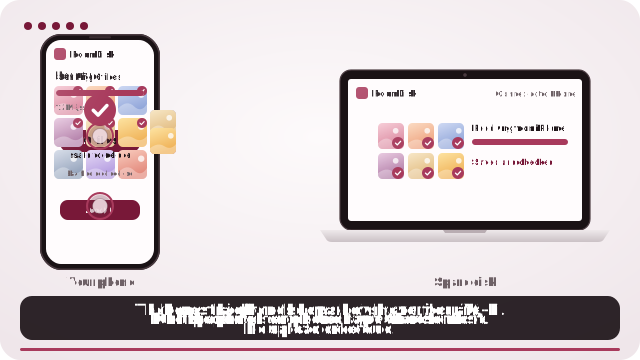
- On the computer, open roomdisk.com/app in Chrome or Edge and choose The storage disk; when it asks where to keep files, pick a folder on the external drive.
- Pair your iPhone once (scan the code, then the disk scans the iPhone’s reply and you tap Allow).
- Send photos and videos. Each is written to the drive, read back and checked, and the iPhone says which are safe to delete.
Next time, the iPhone reconnects by itself when RoomDisk is open on both. No adapters, no format worries on the phone side, and no “did it finish?” guessing.
Cable or wireless?
| Drive on the iPhone (cable) | Drive on a computer (RoomDisk) | |
|---|---|---|
| Cost | The drive and maybe an adapter | The drive, plus $14.99 once |
| Speed | Fastest with USB-C and an SSD | Your Wi-Fi speed (about 16 MB/s in our tests) |
| Checks each copy | No: open files yourself | Yes, on both devices, with a receipt |
| Picks up where it stopped | No | Yes |
| Needs | Matching connector, a supported format, enough power | A computer and both devices on the same Wi-Fi (or a hotspot) |
On iPhone, for exact originals, tap Options in the photo picker and choose Current, or pick from the Files app. Otherwise iPhone may hand over converted copies (JPEG instead of HEIC).
If the drive doesn’t show up in Files
- Unlock the iPhone and wait a few seconds after plugging in.
- Lightning iPhones: use a powered camera adapter (charger plugged into it). Most hard drives need more power than the phone gives.
- Try another cable: some USB-C cables only charge.
- Check the format on a computer: exFAT works; NTFS shows but won’t accept files.
- In Files, tap Browse twice to see Locations, or pull down to refresh.
More fixes when an external drive won’t show up.
Keep it organised
- Make one folder per year or per phone (“iPhone 15, 2026”) instead of one huge folder.
- Save in batches of a few hundred photos: big selections are the ones that stall.
- Note the last photo you copied (its date) so next time you start after it.
- Keep a second copy: a drive in a drawer can fail too. Copy it to a computer or a second drive now and then.
How long it takes
Over USB-C with an SSD, thousands of photos take minutes. Over Lightning (USB 2 speed) expect roughly a gigabyte a minute or less, so a 100 GB library is an evening. Videos with Optimize iPhone Storage on are slower still: each original downloads from iCloud first.
Questions
Can I transfer photos from iPhone to an external hard drive without a computer?
Why won’t my iPhone save to my hard drive?
Does it keep the original quality?
Can I play iPhone videos from the drive on Windows?
Is a portable SSD better than a hard drive?
Try it with the two devices you have
Pay once, keep it. Nothing to install, no account.