
Move Google Photos to your own drive
Google Takeout gives you every photo and video as .zip files, with the dates and albums in separate notes beside them. Unzipped by hand, the dates get lost and albums turn into a mess. RoomDisk reads the export as it is and puts everything back in order.
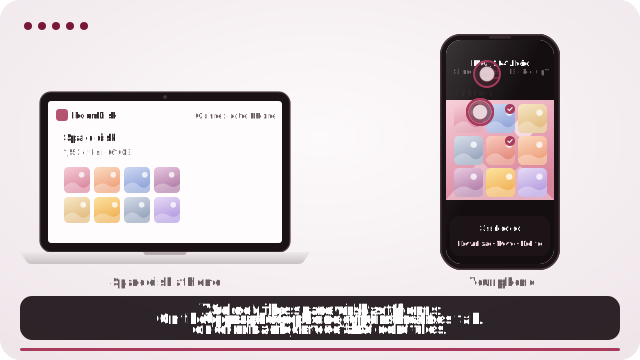
How to do it
- Go to takeout.google.com, choose only Google Photos, and export as .zip files.
- Download the .zip files to the computer or tablet that will keep them.
- Open roomdisk.com/app there, choose Use this device as the storage disk.
- In Files, tap Bring in photos from Google or iCloud and choose all the .zip files at once.
What you get
- Albums kept as folders, and the rest by year.
- The date each photo was taken, from Google’s notes, not the date you downloaded it.
- Each photo once: a photo that’s in an album and in a year folder is kept in the album.
- Every file checked as it’s stored, like everything else on your spare disk.
Leaving iCloud instead?
At privacy.apple.com, request a copy of your data and choose iCloud Photos. Choose those .zip files the same way: albums and dates come back the same.
Then: free the cloud space
When the import says every file is in, you can delete them from Google Photos or iCloud, or downgrade your plan. Keep a second copy first, on another device or a locked copy at a relative’s home, so one failing device can’t lose them.
Questions
How big can the export be?
As big as your spare disk can hold. The .zip files are read piece by piece, never all at once, so even very large exports work on modest devices.
Do I need to unzip anything?
No. Choose the .zip files as they are.
Is importing a Pro feature?
Yes, importing is part of RoomDisk Pro, paid once.
Try it with the two devices you have
Pay once, keep it. Nothing to install, no account.