
Offload iPhone video on set, without a laptop
Shooting on an iPhone fills it fast: Apple says a minute of 4K ProRes takes about 6 GB. When the phone is full halfway through a shoot, you need the footage off, every clip intact, before you can delete and keep rolling. A laptop is one way. An iPad or a second phone on a hotspot is often the one you actually have with you.
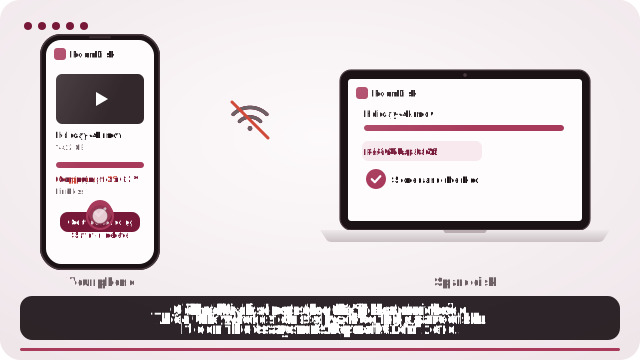
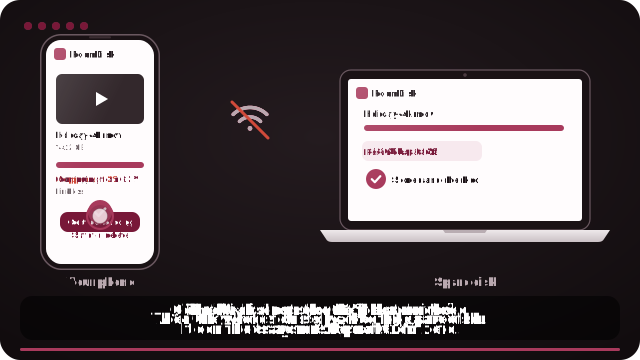
Offload to a tablet or second phone
- On the iPad or second phone, open roomdisk.com/app, choose The storage disk and turn on Disk mode. Keep it charging.
- No Wi-Fi on location? Turn on Personal Hotspot on one device and join it from the other: no mobile data is used.
- On the shooting iPhone, pair once (scan, scan back, tap Allow), then pick the clips from the Files app or the photo picker with Current chosen under Options.
- Wait for safe to delete: each clip is checked on both devices. Play one clip from the disk, then delete and keep shooting.
Your options on set
| Record to an external SSD | Cable to a laptop | RoomDisk to a tablet or phone | |
|---|---|---|---|
| Kit | iPhone 15 Pro or later, a USB-C SSD | A laptop and cable | An iPad or spare phone |
| Speed | Fastest: no offload needed | Fast | Your hotspot or Wi-Fi speed |
| Checks each clip | No | Only with offload software | Yes, on both devices |
| Survives a cut-off | N/A | Start again | Continues where it stopped |
| Free your iPhone | It never filled | After import | After “safe to delete” |
Recording straight to an SSD (iPhone 15 Pro and later, and required for 4K60 ProRes) is the best answer if you planned for it. Offloading to a device you have is for everything else: a phone that filled up, a second camera phone, B-roll on a regular iPhone.
How long it takes
Over a good Wi-Fi network we measured about 16 MB/s between a phone and a disk, so a 6 GB minute of ProRes takes around six or seven minutes. Phone hotspots vary: keep the two devices close and the hotspot device charging. Normal 4K HEVC video is much smaller, so a few minutes of it moves far quicker. Offload in the breaks between setups, not at the end of the day.
What makes it safe to delete on set
- Checked on both devices. The iPhone takes each clip’s SHA-256 checksum; the disk writes it, reads it back and checks it again.
- A cut-off doesn’t cost you the clip. If the hotspot drops at 60%, send again and it continues from 60%.
- A receipt per batch, saved on the disk with every file and its checksum.
- Checksum lists for the edit (Pro): under Receipts, Create writes an ASC MHL list, the checksum format post-production expects, covering every clip.
A two-copy habit for paid work
Before deleting from the shooting phone, put the clips on two devices: after a send, tap put these on another spare disk too to copy them to a second phone or tablet. Clips already there are skipped. Delete only when both say safe to delete.
Getting the footage into the edit
- On a Mac or PC later, open RoomDisk there as a second disk and pull the clips across, or copy them off the iPad in the Files app.
- Keep the MHL list with the footage so the editor can verify every file again.
- Originals stay originals: nothing is converted or compressed.
Tips that save a shoot
- Turn on Disk mode on the receiving device: the screen stays on and shows what’s arriving.
- Keep both devices charging: long transfers drain batteries.
- Name the disk by camera or day (Settings › Name) so clips land in clear folders.
- Stream a clip from the disk to check focus and audio before deleting from the phone.
iPhone doesn’t let web pages work in the background: keep RoomDisk open on the shooting phone until the batch says safe to delete.
Apple’s iPhone specifications list ProRes sizes and which models can record to external storage.
iPhone, iPad and ProRes are trademarks of their owners. RoomDisk isn’t affiliated with them.
Picking the receiving device
| Device | Holds | Good for |
|---|---|---|
| iPad (128–256 GB) | Roughly 20–40 minutes of 4K ProRes, hours of HEVC | Reviewing clips on a big screen on set |
| Second iPhone or Android | Depends on free space | Small shoots, B-roll, a second copy |
| Old phone in the kit bag | Whatever it has free | A dedicated offload device that lives with the camera |
Free space on the receiving device first: delete apps and old downloads, and keep it charging.
If the hotspot keeps dropping
- Keep the two devices within a metre or two, and both charging.
- Turn on “Maximise Compatibility” in the iPhone hotspot settings if the other device struggles to join.
- Send one long clip at a time: if it drops, it continues from where it stopped.
- Use a location’s Wi-Fi only if devices can see each other on it; many venue networks block that.
A shoot-day checklist
- Receiving device charged, free space checked, RoomDisk open in Disk mode.
- Phones paired before the day starts.
- Offload at every break; never wait for “Storage almost full”.
- Second copy before deleting anything from the shooting phone.
- MHL list created at wrap, kept with the footage.
Picking clips: Files app or photo picker
If you record into the Photos library, pick clips in RoomDisk’s photo picker with Options › Current so iPhone hands over the original file. If your camera app records into Files (many pro camera apps can), pick from Files: those are always the original clips.
Questions
How much storage does iPhone ProRes use?
Can I offload iPhone footage without a computer?
Does it use mobile data on a hotspot?
Is the footage compressed?
Can I give the editor a checksum list?
Try it with the two devices you have
Pay once, keep it. Nothing to install, no account.